Procedure Text : How To Use
Hello Everyone !
Today i will tell u how to use Virtual Background in Zoom
I already explained about procedure text on my previous blog, but i will remind you again incase you've forgot.
Procedure text is a text that explains or helps us how to make or use something. Its social function is to describehow something is completely done through a sequence of series. Communicative purpose of this text is to describe how something is made through a sequence of actions or steps
Generic Structure of Procedure Text
# Goal : (e.g : How to make spaghetti)
# Material or Ingredient : (e.g : the material to cook omelette are egg, onion, vegetable oil, etc. )
# Step : (e.g : first, wash the tomatoes, onion, …., second cut the onions becomes slice. . . )
Purpose of Procedure Text
– To explain/tell (the reader) how to make/operate/do something through a sequence of actions or steps.
– To explain steps/instruction to make/operate/do something
EXAMPLE
How To Use Virtual Background in Zoom
- Sign in to the Zoom desktop client.
- Click your profile picture, then click Settings.
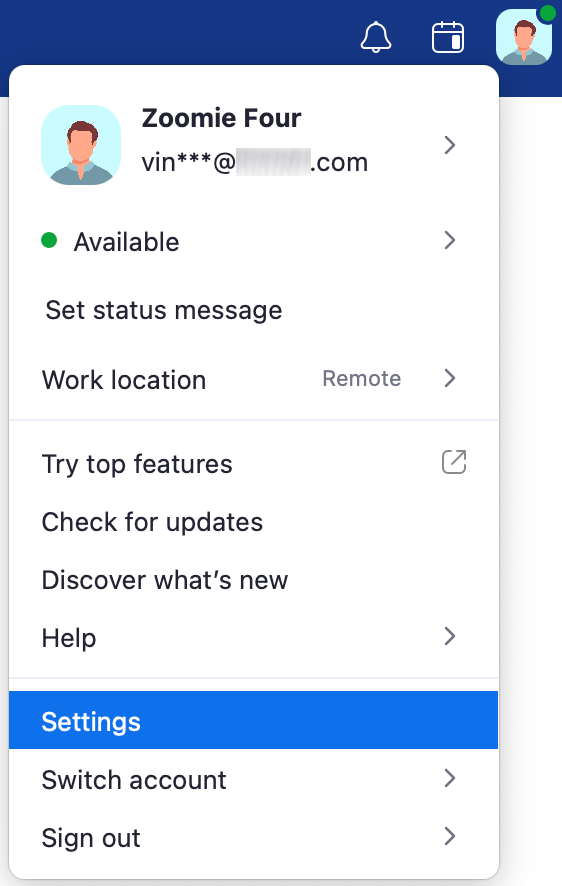
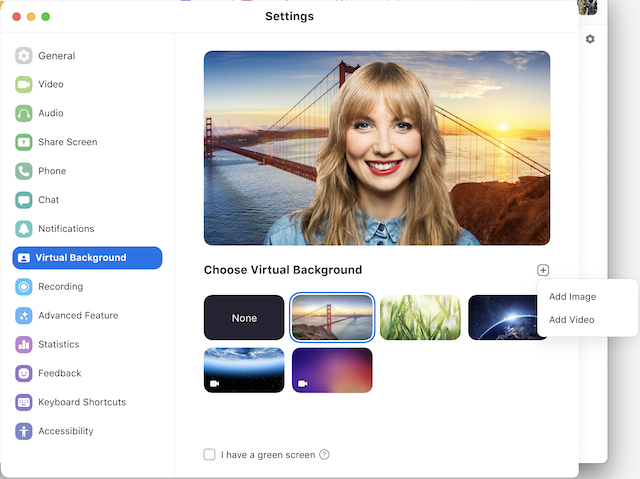
- Select Virtual Background.
Note: If you do not have the Virtual Background tab and you have enabled it on the web portal, sign out of the Zoom Desktop Client and sign in again.
- Check I have a green screen if you have a physical green screen set up. You can then click on your video to select the correct color for the green screen.
- Click on an image to select the desired virtual background or add your own image by clicking + and choosing if you want to upload an image or a video.
If prompted, click Download to download the package for virtual background without a green screen.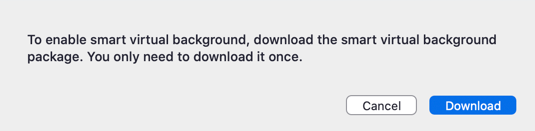
Notes:- Ensure that you are using a solid background color.
- After you select an option, that virtual background will display during your meetings.
- To disable Virtual Background, choose the option None.
Komentar
Posting Komentar